> For the complete documentation index, see [llms.txt](https://manuals.dialox.ai/llms.txt). Markdown versions of documentation pages are available by appending `.md` to page URLs; this page is available as [Markdown](https://manuals.dialox.ai/advanced-topics/flow-topics/switching-language-using-intent-trigger.md).
# Switching language using intent trigger
Sometimes the [language selected by the platform](/studio/flows/languages.md) for a conversation doesn't match any language known by the user. There are several ways to allow the user to choose a language themselves. The simplest way is to use the [**Ask: Language** node](/studio/flows/nodes/ask-language.md).
Another way of offering users to change their preferred language is by building an intent trigger in your flow that triggers the [**Control Flow: Switch language** node](/studio/flows/nodes/control-flow-switch-language.md) to switch to the right language.
In this example we are going to demonstrate a way to switch to the Dutch language, but using this example you can implement any language switch.
## 1. Train a global intent
Go the AI section and open the Intents page. Add an intent called "Switch to Dutch".
## 2. Add an intent trigger to your Playbook
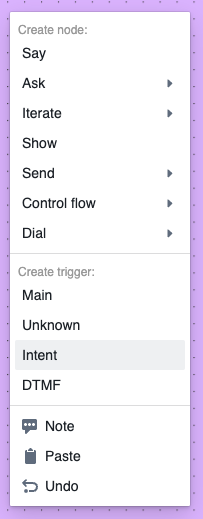
Go to the Flows section and open the Playbook. Now right click on your canvas and add an Intent trigger to the flow:
Create intent trigger
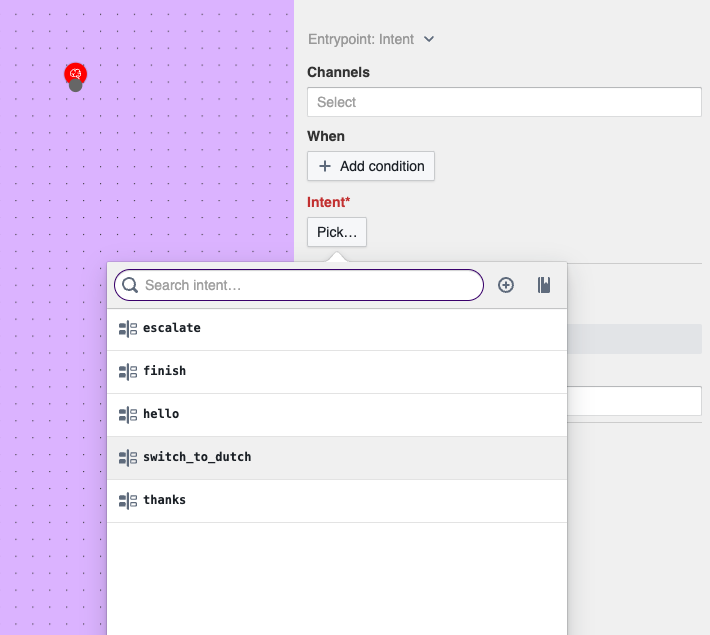
Now pick the intent you just created in the side panel of the newly created intent trigger by clicking on the pick button and select the intent **switch\_to\_dutch**.
Configure the intent trigger to trigger on the newly created global intent
## 3.Add Control flow: Switch language
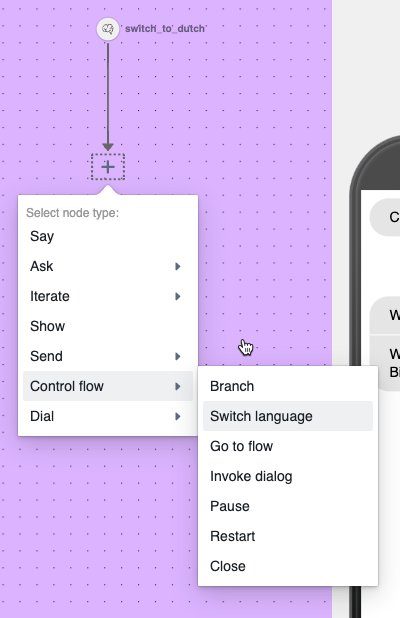
Now drag a line from the newly created intent trigger node and pick the [**Switch language**](/studio/flows/nodes/control-flow-switch-language.md) node in the Flow control menu.
Add flow control: switch language
Now configure it to switch to the Dutch language by picking the language in the drop down. When the language isn't available, you might need to add it in your bot settings first. Go to the [bot identity page](/settings/app-settings/app-identity.md) in settings.
Configure the switch language node
## 4. Add Flow control: restart
Now when the language is changed while a conversation is in the middle of an **Ask** or **Iterate** node, the App will continue in the previous language. This is because the ask and iterate texts are already loaded in memory. The only way to solve this is by restarting the conversation. This can be done by dragging a line from the newly created Switch language node and add the node [**Control flow: Restart**](/studio/flows/nodes/control-flow-restart.md).
Now the conversation will restart in Dutch once the global intent trigger has switched the conversation to Dutch.