# Google Tag Manager

When you are managing multiple third party tags and scripts on your website, it might be a good idea to start using a service to keep track of them easily. Google Tag manager is one of those services.

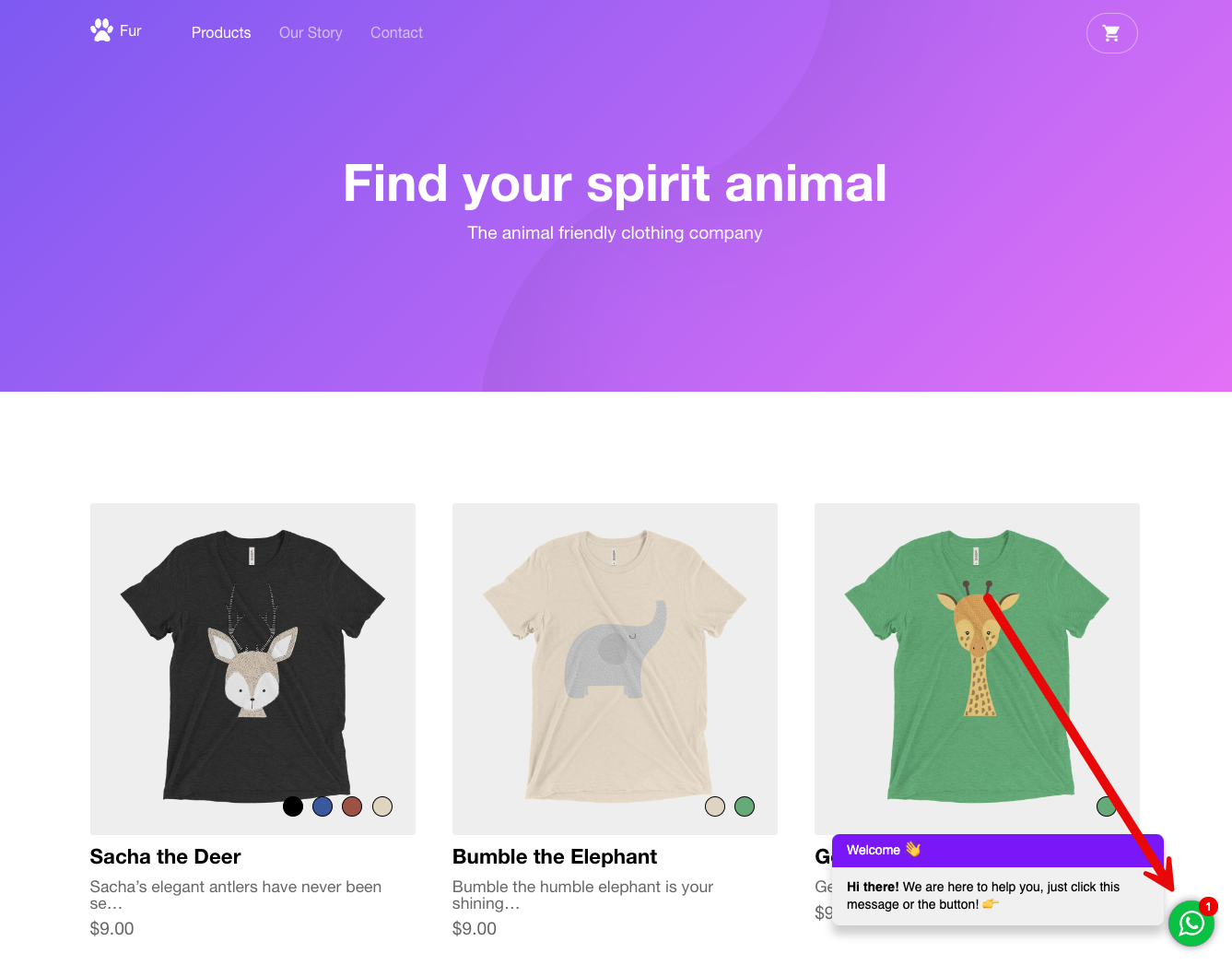
This page explains how to use Google Tag manager to expose the DialoX chat widget on your website.

## Get google tag manager

First make sure you have an account to goolge tag manager. For this, go to:

{% embed url="<https://tagmanager.google.com/>" %}

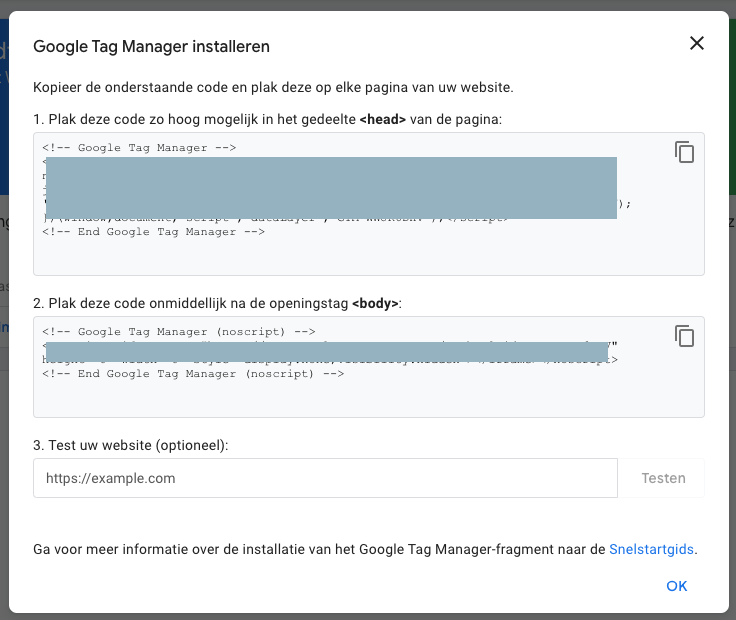
After you've signed up, you will receive two HTML snippets that you need to incorporate in your website according the instructions provided by google.

<figure><img src="https://3356808761-files.gitbook.io/~/files/v0/b/gitbook-x-prod.appspot.com/o/spaces%2FEBQHGJABNTj5ISSOTRxM%2Fuploads%2FfMCyhwEhQAsPlmzIyLoC%2Fimage.png?alt=media&#x26;token=929c1490-791e-4701-8d45-ff9de16fe86b" alt=""><figcaption><p>Example of the instructions google provide to you when signing up</p></figcaption></figure>

When you are using a CMS like Wordpress or Wix, you don't need to worry about applying these snippets to your HTML code. You only need to make sure the plugin or widget you are using is connected to your Google Tag manager account.

## Add a custom tag

When you have an account to google tag manager and implemented Google Tag manager on your website, you can now start adding services to is, like the DialoX web widget. You can do this by adding a custom tag.

Go to your overview page and click on "Add a new tag"

<figure><img src="https://3356808761-files.gitbook.io/~/files/v0/b/gitbook-x-prod.appspot.com/o/spaces%2FEBQHGJABNTj5ISSOTRxM%2Fuploads%2FVTNUGk7sa0nlAVMioinU%2Fimage.png?alt=media&#x26;token=4e9e1c9e-178b-4bce-bf92-bee0a0259d7e" alt=""><figcaption><p>Add a new tag in Google Tag Manager</p></figcaption></figure>

Google will open the following page in which you will need to provide two pieces of information:

1. Tag configuration
2. Triggering

<figure><img src="https://3356808761-files.gitbook.io/~/files/v0/b/gitbook-x-prod.appspot.com/o/spaces%2FEBQHGJABNTj5ISSOTRxM%2Fuploads%2FXEZyNkaq9yo0iuXUMygf%2Fimage.png?alt=media&#x26;token=0f7e9450-7cf1-4911-b424-e1d9c5aa41bf" alt=""><figcaption></figcaption></figure>

### Step 1 Add tag configuration

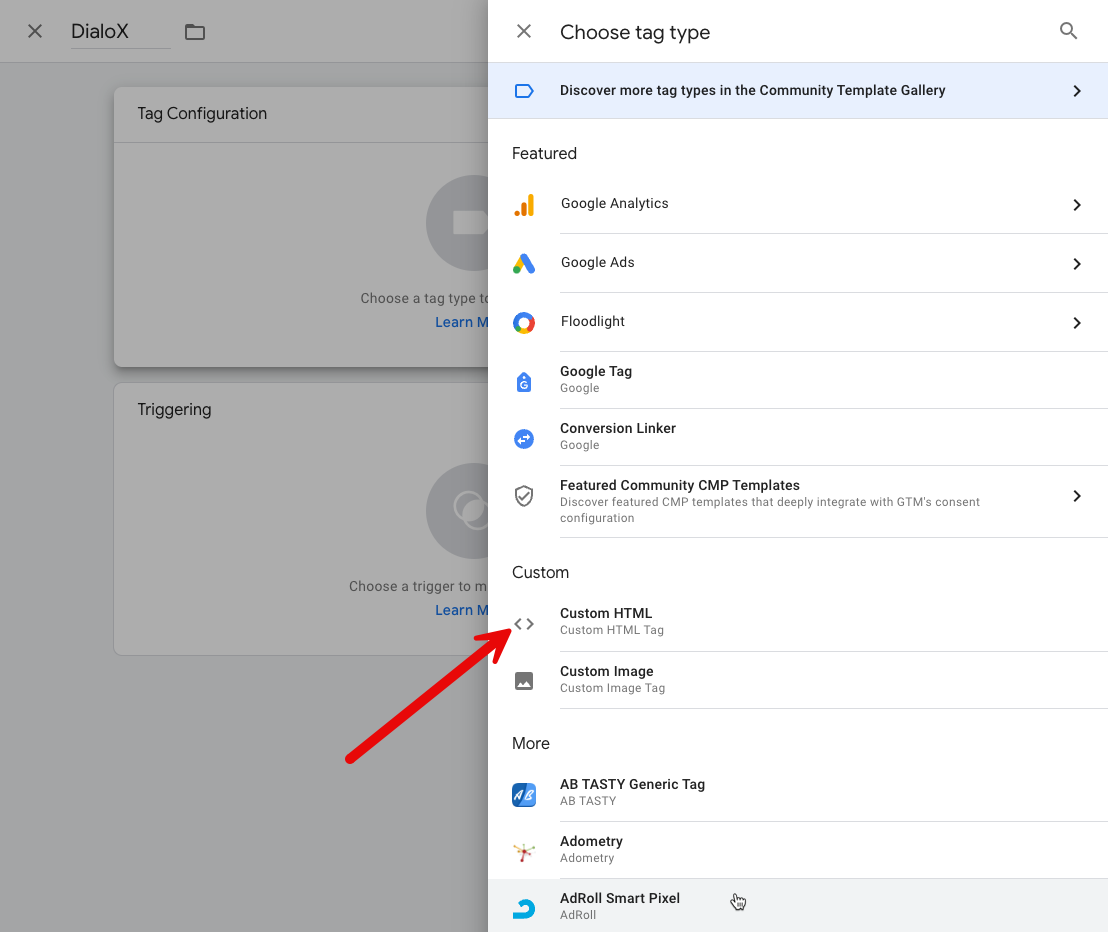
Click on Tag Configuration and select Custom HTML in the list on the next form:

<figure><img src="https://3356808761-files.gitbook.io/~/files/v0/b/gitbook-x-prod.appspot.com/o/spaces%2FEBQHGJABNTj5ISSOTRxM%2Fuploads%2FjGMqJKvCfwdGvtiIot0A%2Fimage.png?alt=media&#x26;token=fe8538f6-2f73-4344-9ba3-dc024a656adb" alt=""><figcaption><p>Choose Custom HTML</p></figcaption></figure>

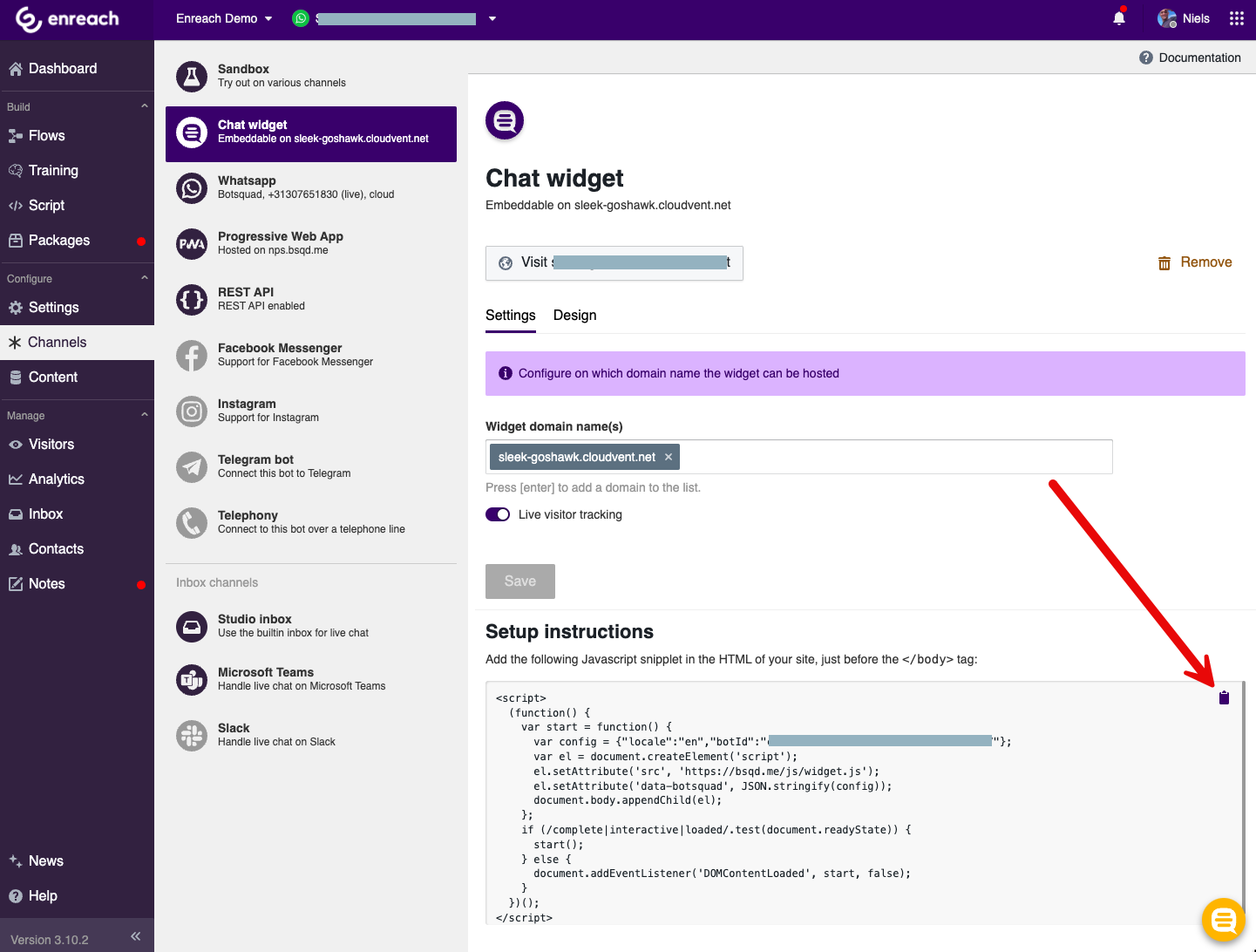
Now go to the Channels page in the DialoX studio and click on Web Widget. Here you can find the Web Widget snippet. Copy it to your clipboard:

<figure><img src="https://3356808761-files.gitbook.io/~/files/v0/b/gitbook-x-prod.appspot.com/o/spaces%2FEBQHGJABNTj5ISSOTRxM%2Fuploads%2FYK26oiNDjaPg5IVbujqX%2Fimage.png?alt=media&#x26;token=15acb2de-28b2-4db2-8fee-dc46857972fc" alt=""><figcaption><p>Copy the Javascript snipplet into your clipboard</p></figcaption></figure>

Now go back to the Google Tag manager page that you just opened, paste and save the snippet in there and continue with step 2.

### Step 2 Triggering

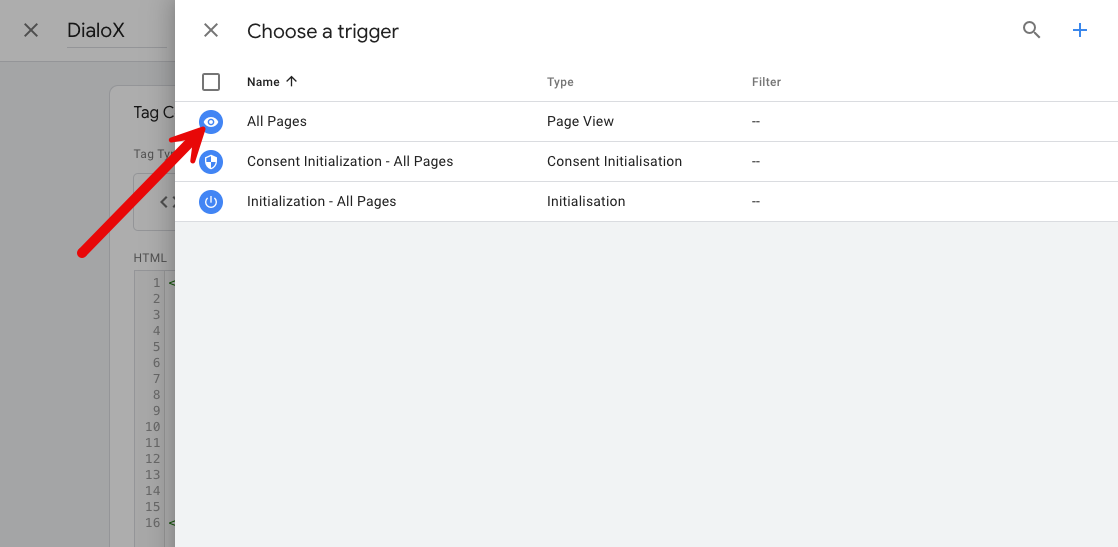
Now open the triggering page and select All Pages to have the Chat widget on all pages of your website.

<figure><img src="https://3356808761-files.gitbook.io/~/files/v0/b/gitbook-x-prod.appspot.com/o/spaces%2FEBQHGJABNTj5ISSOTRxM%2Fuploads%2FSOPRNU3PE65WwB8wxPpe%2Fimage.png?alt=media&#x26;token=2970870f-be8f-435c-a317-0808abd1ae72" alt=""><figcaption><p>Select the triggering method</p></figcaption></figure>

## Submit your tag

Now you've configured your tag you first need to submit it before it becomes active on your website.

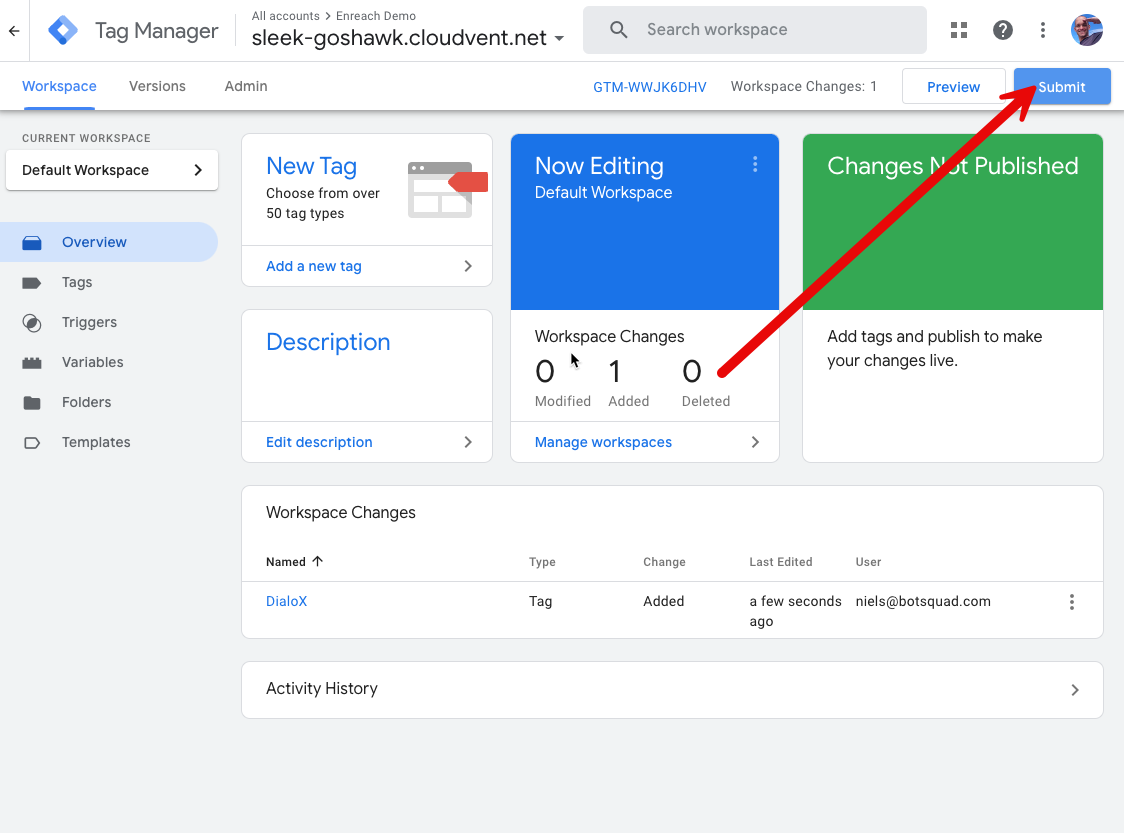
For this click on the submit button on the overview page in Tag Manager.

<figure><img src="https://3356808761-files.gitbook.io/~/files/v0/b/gitbook-x-prod.appspot.com/o/spaces%2FEBQHGJABNTj5ISSOTRxM%2Fuploads%2FzCXZqErknjhb3kpqKjyv%2Fimage.png?alt=media&#x26;token=1135640c-bdba-415c-be11-0af193cc0696" alt=""><figcaption><p>Submit your widget</p></figcaption></figure>

Now give your version a descriptive name and click on the Submit button:

<figure><img src="https://3356808761-files.gitbook.io/~/files/v0/b/gitbook-x-prod.appspot.com/o/spaces%2FEBQHGJABNTj5ISSOTRxM%2Fuploads%2FaVc7Kf3VQlEPX1UjKvcr%2Fimage.png?alt=media&#x26;token=3cf97c40-05c7-4d82-96e0-02ca10fce354" alt=""><figcaption><p>Submit a new version of your tag</p></figcaption></figure>

Now go to your website and check it. It should now show the web widget icon you configured for your website in the right lower corner of your website.

<figure><img src="https://3356808761-files.gitbook.io/~/files/v0/b/gitbook-x-prod.appspot.com/o/spaces%2FEBQHGJABNTj5ISSOTRxM%2Fuploads%2FdgacOFxivefyzCBYNm7u%2Fimage.png?alt=media&#x26;token=33617a6c-3101-47cb-8dc5-58abb73e5ec9" alt=""><figcaption></figcaption></figure>