> For the complete documentation index, see [llms.txt](https://manuals.dialox.ai/llms.txt). Markdown versions of documentation pages are available by appending `.md` to page URLs; this page is available as [Markdown](https://manuals.dialox.ai/advanced-topics/studio/conversation-retention-time.md).
# Conversation retention time
When well conversation data be archived?
The data collected by your Smart Apps are stored in the DialoX platform by default for an indefinite period of time.
Any assets collected by your Smart App, like images and audio (recordings) are disposed after 2 years. So although your conversation history will remain available, file-based assets (like images or audio files) will be removed after 2 years.
The above defaults are dependent on the hierarchical configuration that applies to your specific organisation.
## Hierarchical configuration
Retention policies can be managed in a hierarchical order. So when you set the retention policy on "Agency" level, it will apply for all underlying Customers and Environments. When you change it on Customer level, it will apply for all underlying Environments. And if you change it on Environment level, it will simply only apply for that environment.
## Who can manage the Retention policy?
Users with the role Organisation manager or Administrator are able to access the Advanced Settings of an environment and therefore change the retention policy.
## What is my current Retention policy?
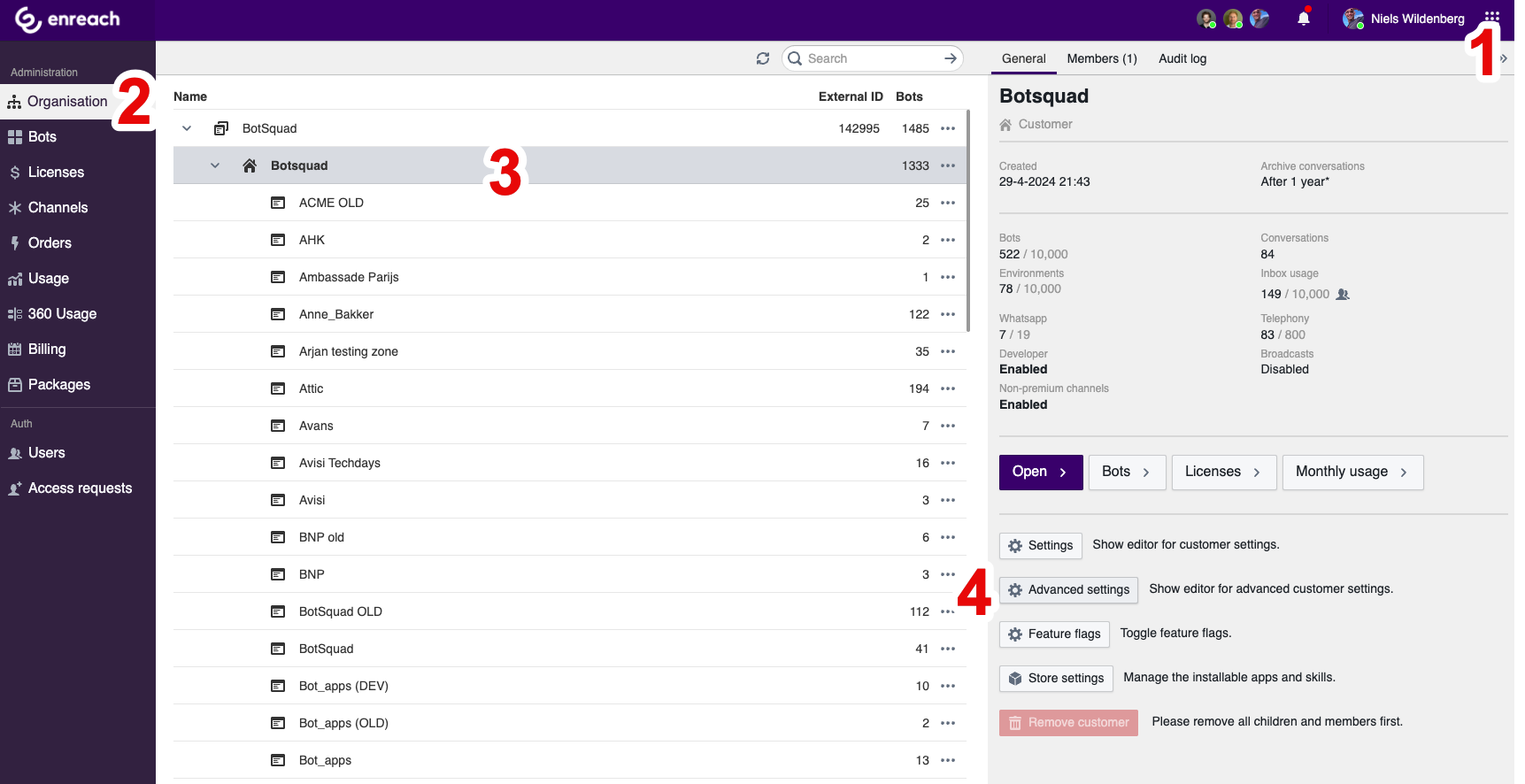
You can find your current retention policy by taking the following steps:
1. Go to the Administration section
2. Go to Organisation
3. Find your Agency, Customer or Environment
Now you can find your current retention policy in the sidebar, under the label "Archive conversations". If it is marked with an asterisk, that means that the setting was derived from a parent level organisation.
Find your current retention period
## Where can I change my retention policy?
The retention policy can be configured in the settings of your Agency, Customer or Environment, depending on which level the policy should apply to.
### For Agencies
1. Go to the Administration section
2. Go to Organisation
3. Find your Agency, Customer or Environment in which you want to change the policy
4. Click on Advanced Settings
Advanced Settings, to change your retention period
### For end customers
End customers usually do not have access to the Administration section. They can remain in the Studio section and simply find their environment without opening a specific bot. In the environment view, there is a menu item called "Advanced Settings" which will open a popup.
1. Find your environment (or choose "manage environment" if you have a specific bot opened)
2. Click on Settings
Find Settings on the Manage Environment page
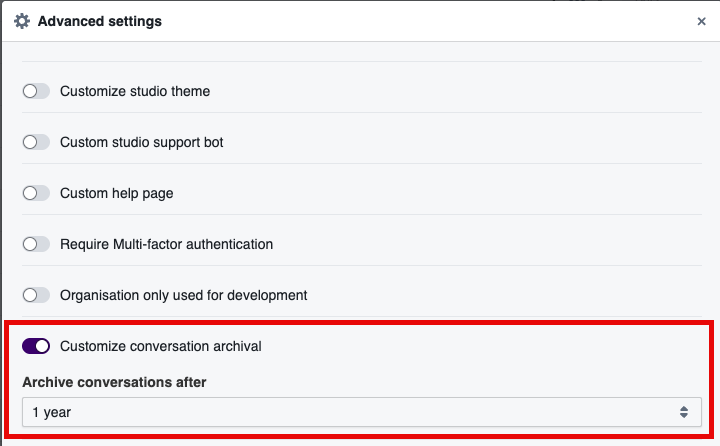
## Advanced Settings
In the Advanced Settings section, you'll find the option "Customize Conversation Archival". You can choose between a fixed number of default settings.
Change the retention period in the Advanced settings pop up
## When will these changes apply?
For new conversations, the settings will be in effect immediately. For previous conversations, the change will be applied during the first night after the settings are changed. During that clean up cycle, conversations older than the new retention period will be deleted automatically.